Map Layers
Map layers are additional images for a map. Create and manage them from the map’s regular edit page; Map Explorer is the primary place for viewing and creating markers.
For example, you can make a dungeon map with and without traps, or add a transparent layer containing a grid or political borders.
Fields
Entry
The description field is for your own book-keeping, for example if you have numbers visible on a layer, the description could contain the information on what each number represents.
Layer types
Layers have three types that control how they are displayed on a map.
Standard layer: an alternative map image, intended for the legacy map interface.
Overlay (displayed above): an optional transparent image displayed over the base map in the legacy map interface.
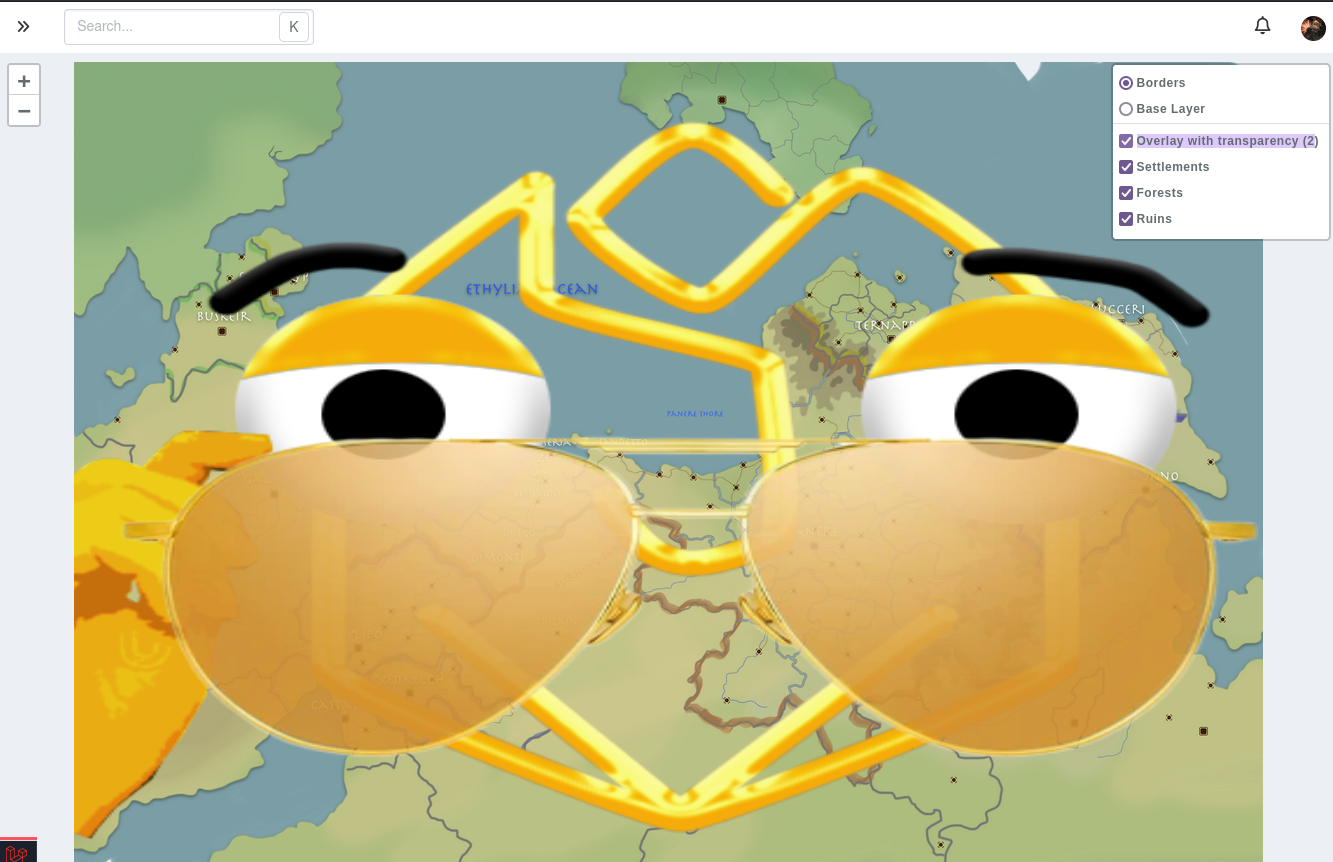
Overlay shown by default: a transparent image that Map Explorer displays automatically above the base map. Use this for information that should always be visible, such as borders or a grid.
Map Explorer currently displays layers that are set to Overlay shown by default. It does not include the old layer-switching controls for standard and optional overlay layers.
Overlay images stretch to the size of the map image.
Permissions
Layers have the standard visibility permission system, meaning you can make layers only visible to your campaign admins, or only to yourself and hidden from the other admins of your campaign.
Limitations
Standard campaigns can have a maximum of one (1) layer per map, while premium campaigns can have up to twenty (20).
There is currently no way to have more than twenty layers per map.
FAQ
Can multiple layers be shown at the same time?
In the legacy map interface, Overlay layers can be shown individually on top of the base image or a standard layer. In Map Explorer, every Overlay shown by default layer is displayed.
Can I attach markers to layers to show/hide them when a layer is visible?
No. Use map groups to organise markers instead.