Archetypes
If you find yourself copy-pasting boilerplate content from existing entries to your new entries, you will be better off setting one or multiple archetypes.
Example
For example, we are going to create a character template for all of our NPCs.
First off, create the new character and fill out the fields you want it to have. This new character might have some default tags like a To-Do tag, some text in the entry, some default traits you want to remember to fill out, or some properties that are important for your game. You can also give it some default properties, a “plot” articles, properties and more.
Once your character is created, view it and click on the ... button to the right. This opens the character’s action menu. From there, you should see the option labelled set as template.

This sets the new character as a template.
Creating a character based on the archetype
To create a new character based on the archetype, navigate to the characters page of your campaign. In the top right, next to the new character button, you’ll now see an option with the archetype’s name.
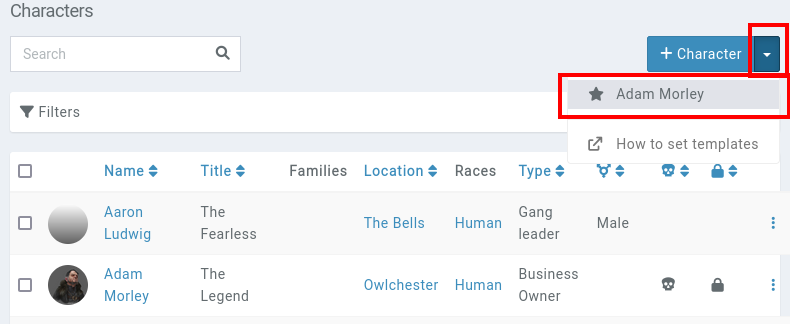
This brings up the new character page, with fields filled out from the archetype. The name is always empty, to help avoid having multiple entries with the same name.
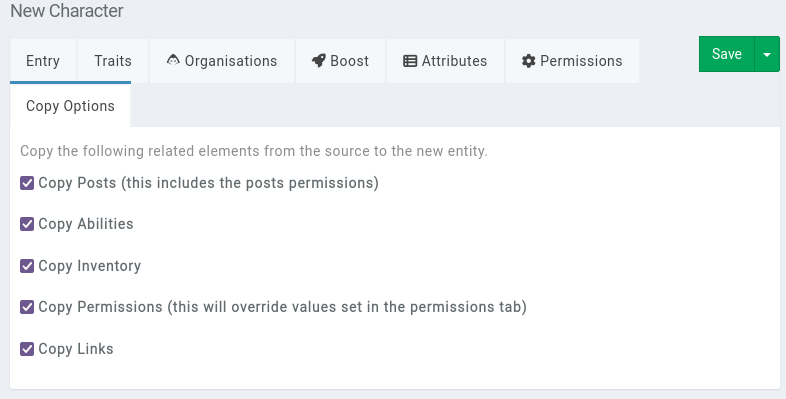
In the form’s copy options tab, you can control which related elements are to be copied over. All of these options are enabled by default.
Removing an archetype
To remove an entry as being an archetype, click again on the entry’s action menu cog icon and select the option Remove as template.
Miscellaneous details
Archetypes are bound to a category. Meaning that a character set as an archetype can only be used to create a new character.
If members of your campaign can create a character and have access to the archetype (meaning they can view it), they also get the option to create a new character based on the archetype. The same applies for other categories of your campaign.